Showing posts with label set. Show all posts
Showing posts with label set. Show all posts
Sunday, January 25, 2015
How to Set Password on HUAWEI C8813

To set a password on HUAWEI C8813 phone, you can adopt either of the following two methods.
Way 1: Set a password in All settings.
Step 1: Open Settings.
Step 2: Choose Security in All settings.
Step 3: Click Screen lock to move on.
Step 4: Select Password.
Step 5: Enter at least 4 characters (including at least 1 letter) and click Continue.
Step 6: Re-enter the password and tap OK.
Way 2: Set a password in General settings.
Step 1: Access Settings.
Step 2: Select General on the top left.
Step 3: Choose Screen lock.
Step 4: Click Screen lock in the next interface.
Step 5: Select Password.
Step 6: Set up a password according to the guidance mentioned above.
Related Articles:
How to Set Password on HUAWEI U8800/U8800+
How to Set Password on HUAWEI Ascend P6/P7
How to Set Password on HUAWEI Honor 3C
How to Set Password on HUAWEI Honor 3X
How to Turn on USB Debugging in Huawei Honor 3X

Saturday, January 24, 2015
How to Set Password on Samsung ATIV S GT I8750
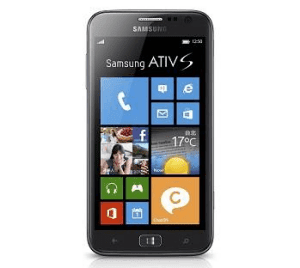
With Windows Phone 8 system, 4.8-inch screen and many other advantageous configurations, Samsung ATIV S GT-I8750 phone has enjoyed great popularity among customers. However, a number of users have no idea how to set a password to it. Therefore, the steps to set a password on Samsung GT-I8750 are introduced below.
Step 1: Swipe left on the screen to open a menu of all apps.
Step 2: Swipe up on the menu and click Settings.
Step 3: Choose Lock screen.
Step 4: Find Password option and move the slider to right so as to turn it on.
Step 5: Enter a password, reenter it and tap Finishin the next interface.
Related Articles:
How to Set Password on Samsung Trend II I739
How to Set Password on Samsung S5380/S5380I
How to Open USB Debugging in Samsung Galaxy S5
Android USB Driver for Samsung
How to Set Password on ZTE V5
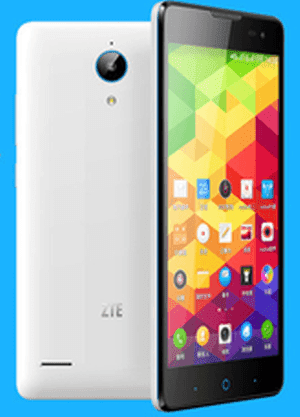
A password is compared to a security lock, which can effectively help you prevent other people from directly using your phone without your allowance. Thus, it is indispensable and sensible for you to learn how to set a password on your ZTE V5 phone, following the steps below.
Step 1: Open Settings.
Step 2: Locate and enter Security and location.
Step 3: Click Set screen lock to move on.
Step 4: Choose Password in the options listed.
Step 5: Set up your ideal password and tap Continue.
During this step, you should make sure that the code must contain at least 4 characters, including 1 letter at least.
Step 6: Re-enter the password and click OK when finished.
Related Articles:
Step 6: Re-enter the password and click OK when finished.
Related Articles:
- How to Enable USB Debugging in ZTE Grand S II LTE
- Android USB Drivers for ZTE
- Recover All Deleted Text Messages on ZTE Blade V-series Android
- How to Set Password on ZTE Nubia X6
- How to Set Password on ZTE V880
How to Set Password on ZTE Nubia X6

Setting a password to your ZTE Nubia X6 phone is a wise option since it will protect the significant phone data for you. As for how to realize it, you can refer to the following procedures.
1. Open Settings.
2. Find and click Security and location.
3. Choose Screen lock.
4. Select Password among the options.
5. Input an at least 4-digit code, and tap Continue when done.
6. Re-input the password and click OK when finished.
Related Articles:
Related Articles:
- Android USB Drivers for ZTE
- How to Enable USB Debugging in ZTE Grand S II LTE
- How to Set Password on ZTE Nubia Z5/Nubia Z5 Mini
- How to Set Password on ZTE Nubia Z5S/Nubia Z5S Mini
- Recover All Deleted Text Messages on ZTE Blade V-series Android
Friday, January 23, 2015
How to Set Password on HUAWEI Honor 3X

Cannot find the Password setting in your HUAWEI Honor 3X phone? In fact, you can locate it in “Screen lock” settings. If you still have no idea where it is, you can refer to the following guide which not only tells you how to find it, but also teaches you how to set a password.
Step 1: Enter Settings.
Step 2: Locate and access Security.
Step 3: Find and select Screen lock in Security settings.
Step 4: Choose Password to go on.
Step 5: Set up a password according to the following instruction.
Enter at least 4 characters (including at least 1 letter) in the empty box and click Continue. After that, re-enter the code and tap OK.
Related Articles:
How to Turn on USB Debugging in Huawei Honor 3X
How to Set Password on HUAWEI Ascend P6/P7
How to Set Password on HUAWEI U8800/U8800+
Huawei Android USB Drivers
Tuesday, January 20, 2015
How to Set Pattern Lock on Samsung Galaxy Gio GT S5660
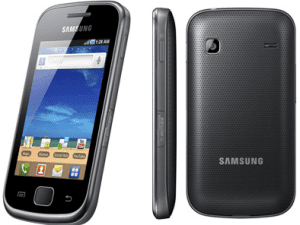
Almost every day, you can see people around you draw diversified patterns on the phone screens to unlock their phones. If you haven’t set a pattern lock on your Samsung Galaxy Gio GT-S5660 phone, your curiosity for the method to set it by yourself will definitely be aroused. Hence, this post illustrates the detailed steps for your reference.
Steps to set a pattern lock on Samsung Galaxy Gio GT-S5660:
Step 1: Open Settings in the phone.
Step 2: Find and access Location and security.
Step 3: Locate and click Set screen lock.
Step 4: Choose Pattern to move on.
Step 5: Draw a pattern and tap Continue. Meanwhile, please note that the pattern must connect at least 4 dots.
Step 6: Draw the pattern again and click Confirm.
Related Articles:
How to Create A PIN Lock for Samsung Galaxy Gio GT-S5660
How to Set Password on Samsung GT-I8190N
How to Set Password on Samsung GT-I8268
Android USB Driver for Samsung
How to Set Password on HTC One M7
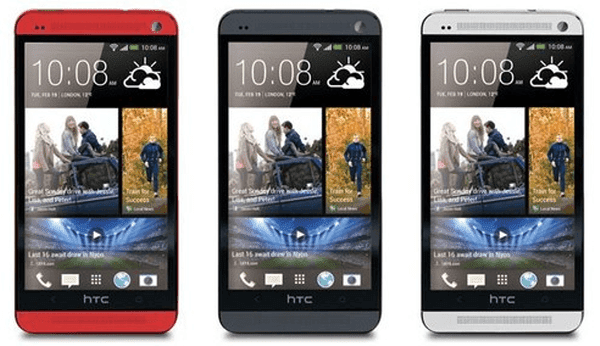
If you feel embarrassed to orally warn other people not to use your HTC One M7 phone, you can set a password to it so as to euphemistically imply your idea. And the following steps can help you quickly set a password on your phone.
Step 1: Go to Settings.
Step 2: Find and click Security.
Step 3: Choose Screen lock.
Step 4: Select Password from the screen lock options.
Step 5: Type a password containing at least 4 characters and tap CONTINUE.
Step 6: Re-type the password in the box and click OK.
Tip: If you don’t want others to see the password when you input it to unlock your phone, you can deselect Make passwords visible in Security.
Related Articles:
- How to Set Password on HTC One M8
- Android USB Drivers for HTC
- Restore Deleted SMS on HTC One Mini Android Phone
Sunday, January 18, 2015
How to Set Password on Sony Xperia Z L36h

With the following guide, you can rapidly set a password to your Sony Xperia Z L36h phone.
Step 1: Open Settings.
Step 2: Enter Security.
Step 3: Select Screen lock.
Step 4: Choose Password.
Step 5: Type at least 4 characters to constitute a password and touch Continue when finished.
Step 6: Re-type the password and click OK.
Step 6: Re-type the password and click OK.
Related Article:
- Android USB Drivers for Sony
Saturday, January 17, 2015
How to Set Password on ZTE V880

The steps to set a password on ZTE V880 phoneare as follows.
Step 1: Get into Settings.
Step 2: Choose Location and security.
Step 3: Tap Set screen lock.
Step 4: Select Password in the options available.
Step 5: Set up a new password and click Continue.
Tip: The code should be at least 4 characters, containing at least 1 letter.
Step 6: Re-type the password and tap OK when done.
Related Articles:
Step 6: Re-type the password and tap OK when done.
Related Articles:
- Android USB Drivers for ZTE
- How to Enable USB Debugging in ZTE Grand S II LTE
- How to Set Password on ZTE Nubia X6
- How to Set Password on ZTE Nubia Z5/Nubia Z5 Mini
- Recover All Deleted Text Messages on ZTE Blade V-series Android
Friday, January 16, 2015
How to Set Password on Sony Xperia Z2

Setting a password on Sony Xperia Z2 phone can be realized through the steps below.
Step 1: Open Settings.
FYI, you can open it by either of the following two methods.
1. Swipe down on the home screen, click “Quick settings” and choose “Settings”.
2. Click the middle icon at the bottom and select “Settings”.
Step 2: Get into Security.
Step 3: Choose Screen lock.
Step 4: Select Password in the options listed.
Step 5: Input at least four characters to be a password and tap Continue.
Step 6: Re-input the code and click OK to confirm it.
After finishing the sixth step, the password has been successfully set to protect the Sony Xperia Z2 phone.
Related Articles:
After finishing the sixth step, the password has been successfully set to protect the Sony Xperia Z2 phone.
Related Articles:
- Android USB Drivers for Sony
- How to Set Password on Sony Xperia Z1
- How to Set Password on Sony Xperia Z L36h
- How to Set Password on Sony LT26i/LT26ii
How to Set Password on HUAWEI Ascend P6 P7

There are two ways you can apply to set a password on your HUAWEI Ascend P6/P7 phone, which are respectively introduced below.
Method 1: Set it up in All settings.
1. Open Settings and choose Securityin All settings.
2. Select Screen lock to go on.
3. Choose Password from the options provided.
4. Enter at least 4 characters (including at least 1 letter) and tap Continue.
5. Re-enter the password and click OK.
Method 2: Set a password in General settings.
1. Access Settings and select Generalon the top left corner.
2. Choose Screen lock.
3. Select Screen lock in the following interface.
4. Click Password to move on.
5. Type a password composed of at least 4 characters and click Continue.
6. Re-type the code and tap OK.
Related Articles:
How to Set Password on HUAWEI U8800/U8800+
How to Turn on USB Debugging in Huawei Honor 3X
Huawei Android USB Drivers
Wednesday, January 14, 2015
How to Set Password on HTC Butterfly S

Setting a password to your HTC Butterfly S phone will lesson your anxiety that anyone else can browse and even use the private and important data for improper purposes once he or she gets your phone. And the steps to set password on HTC Butterfly S phone are illustrated as follows.
Step 1: Open Settings.
Step 2: Locate and click Security.
Step 3: Choose Screen lock.
Step 4: Select Password as the screen lock.
Step 5: Set up a password according to the requirement.
In more detail, enter at least 4 characters which must contain at least 1 letter to be the password, and tap CONTINUE. Then, re-type the code and click OK.
Related Articles:
- Android USB Drivers for HTC
- Restore Deleted SMS on HTC One Mini Android Phone
- How to Set Password on HTC One M8
- How to Set Password on HTC One Max
- How to Set Password on HTC One X/One X+
How to Set Password on HTC Desire 816
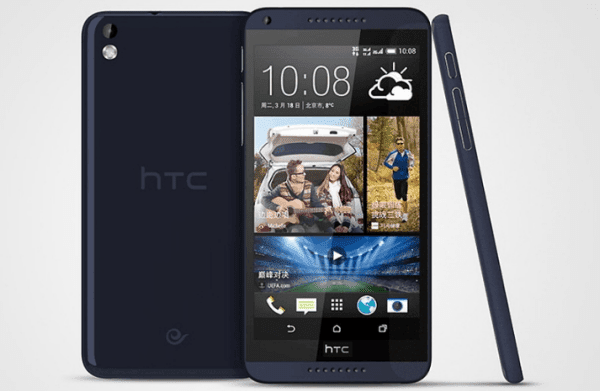
No matter it is a pattern lock, PIN lock or password lock, it is the first line of defense you can set up to prevent other people from checking or stealing the data in your HTC Desire 816 phone. If you have no idea how to set any of the locks mentioned, this post will introduce the steps to set a password for your reference.
Step 1: Enter Settings and choose Security.
Step 2: Open Screen lock.
Step 3: Select Password.
Step 4: Set up a password as requested.
More specifically speaking, type at least 4 characters (including at least one letter) and press CONTINUE. Then, re-type the password and tap OK.
Step 5: Make password invisible. (Optional)
Related Articles:
- How to Get Back Deleted Text Messages on HTC Desire Phone
- Android USB Drivers for HTC
- How to Set Password on HTC One X/One X+
- How to Set Password on HTC One M8
- How to Set Password on HTC One Max
Subscribe to:
Posts (Atom)