Showing posts with label s5660. Show all posts
Showing posts with label s5660. Show all posts
Sunday, January 25, 2015
How to Create A PIN Lock for Samsung Galaxy Gio GT S5660

Locking phone screen to prevent other people from easily accessing the phone seems to be a must-to-do thing to protect the private data. And among all available methods, a relatively effective method is creating a PIN lock. Moreover, this post primarily introduces the steps to create a PIN lock on Samsung Galaxy Gio GT-S5660.
Step 1: Open Settings.
Step 2: Choose Location and security.
Step 3: Click Set screen lock.
Step 4: Select PIN to go on.
Step 5: Select 4 numbers to form a PIN, and press Continuewhen finished.
Step 6: Reselect the 4 numbers to confirm the PIN, and tap OK.
Related Articles:
How to Set Pattern Lock on Samsung Galaxy Gio GT-S5660
How to Set Password on Samsung GT-I8190N
How to Set Password on Samsung GT-I8268
How to Enable and Disable USB Debugging in Samsung GALAXY Tab2

Tuesday, January 20, 2015
How to Set Pattern Lock on Samsung Galaxy Gio GT S5660
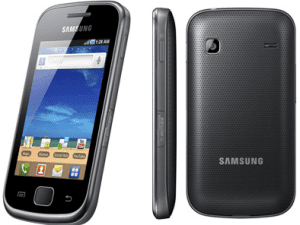
Almost every day, you can see people around you draw diversified patterns on the phone screens to unlock their phones. If you haven’t set a pattern lock on your Samsung Galaxy Gio GT-S5660 phone, your curiosity for the method to set it by yourself will definitely be aroused. Hence, this post illustrates the detailed steps for your reference.
Steps to set a pattern lock on Samsung Galaxy Gio GT-S5660:
Step 1: Open Settings in the phone.
Step 2: Find and access Location and security.
Step 3: Locate and click Set screen lock.
Step 4: Choose Pattern to move on.
Step 5: Draw a pattern and tap Continue. Meanwhile, please note that the pattern must connect at least 4 dots.
Step 6: Draw the pattern again and click Confirm.
Related Articles:
How to Create A PIN Lock for Samsung Galaxy Gio GT-S5660
How to Set Password on Samsung GT-I8190N
How to Set Password on Samsung GT-I8268
Android USB Driver for Samsung
Subscribe to:
Posts (Atom)