Showing posts with label connect. Show all posts
Showing posts with label connect. Show all posts
Wednesday, January 28, 2015
Samsung Galaxy Core 2 as modem to connect to internet from PC
Samsung Galaxy Core 2 is a mid range dual sim Android smartphone. It runs on Android 4.4.2 Kitkat along with Touchwiz user interface. There is a 4.5 inch TFT multi touch capacitive touchscreen with screen resolution of 480x800 pixels. Galaxy Core 2 is powered by 1.2GHz quad core processor with 768MB of RAM. Internal storage of this Samsung Dual sim Android phone is 4GB and supports microSD card upto 64GB. Connectivity features of the device 2G, 3G, WiFi, Bluetooth, USB, WiFi hotspot and USB tethering. It houses 2000 mAh battery.

How to use Samsung Galaxy Core 2 as Modem
Samsung Galaxy Core 2 USB tethering
Samsung Galaxy Core 2 can be used as USB modem through the USB tethering feature. To use Galaxy Core 2 as modem, follow the below mentioned steps.- Enable the mobile data which you can accesss through the quick menu. You can access this menu from swiping the screen from top to bottom
- Connect your phone to PC using the USB cable.
- Normally Windows detects the phone installs the required drivers. If it does not recognises the device then download and install the Samsung Galaxy Core 2 PC suite.
- Now Go to Settings which once again available in the quick menu or in the application page also you can choose.
- Under settings, Go to More->Tethering & Mobile Hotspot.
- Enable the USB tethering
Now your Computer or PC will be connected to internet using Samsung Galaxy Core 2 as modem.
Samsung Galaxy Core 2 as WiFi Hotspot
To use Galaxy Core 2 as WiFi hotspot follow the steps given below.
- Navigate to Settings->More...->Tethering & mobile hotspot. Now enable Mobile WiFi hotspot by tapping on to it. You can customise the SSID and password by going to Setup WiFi hotspot page.

Tuesday, January 20, 2015
How To Use Sony Xperia M2 as Modem to Connect to Internet From PC
Sony Xperia M2 and Xperia M2 Dual are the two higher mid range Android smartphones. Both are identical interms of specification except the number sim they support. The Sony Xperia M2 is powered by 1.2 GHz Qualcomm MSM8226 Quad Core Processor with 1GB of RAM. It has 4.8 inch qHD display and 8MP primary camera. It supports most of the connecting features. In this Xperia Tips post, we will learn how to use Sony Xperia M2 as Modem to connect to Internet from PC.
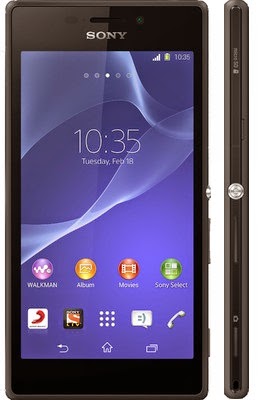
It is good configure WiFi hotspot settings before you enable Xperia M2 WiFi Hotspot.
You are done. Now you can use Sony Xperia M2 as WiFi hotspot to connect other WiFi enabled device to internet.
How to use Sony Xperia M2 as Modem
There are three ways, you can share the internet data from your Xperia M2 to other devices. 1. WiFi hotspot 2.USB tethering 3. Bluetooth Tethering. In this post we will learn USB tethering and WiFi hotspot.How to use Sony Xperia M2 as WiFi Hotspot
- Go to Settings from the app tray.
- Then go to More… > Tethering & portable hotspot.
It is good configure WiFi hotspot settings before you enable Xperia M2 WiFi Hotspot.
- Tap Portable Wi-Fi hotspot settings > Configure Wi-Fi hotspot.
- Enter the Network SSID information.
- To select a security type, tap the Security field. If required, enter a password.
- Tap Save.
- Tap back button and select Portable Wi-Fi hotspot checkbox.
- When prompted, tap OK to confirm. WiFi icon appears in the status bar once the portable Wi-Fi hotspot is active.
- To stop sharing your data connection via Wi-Fi® , unmark the Portable Wi-Fi hotspot checkbox.
How to customise Xperia M2 WiFi hotspot Settings
- Tap Settings > More… > Tethering & portable hotspot.
- Tap Portable Wi-Fi hotspot settings > Configure Wi-Fi hotspot.
- Enter the Network SSID for the network.
- To select a security type, tap the Security field.
- Enter a password you like.
- Tap Save.
How to Enable Sony Xperia M2 USB tethering
- Using the USB cable connect Xperia M2 to a computer.
- Tap Settings > More… > Tethering & portable hotspot.
- Select USB tethering checkbox, then tap OK when prompted. USB tethering icon is displayed in the status bar once you are connected.
- To stop sharing your data connection, unmark the USB tethering checkbox or disconnect the USB cable.
Subscribe to:
Posts (Atom)